Guide
How to approve Claude Code permission prompts without the terminal
There are two halves to this. Cut the number of prompts with allow rules in settings.json or the /permissions dialog, for commands you always approve such as npm run test. Then answer the prompts that remain from wherever you are, with a PermissionRequest hook or an app that shows them with Allow and Deny buttons, such as a notch app.
1. Pre-approve what you always allow
Permission rules live in the permissions object of a settings file, as allow, ask and deny lists. A rule is a tool name, optionally with a specifier in brackets:
{
  "permissions": {
    "allow": [
      "Bash(npm run test *)",
      "Bash(npm run build)",
      "WebFetch(domain:docs.python.org)"
    ],
    "deny": [
      "Read(./.env)"
    ]
  }
}
- Where it goes.
~/.claude/settings.jsonapplies to every project..claude/settings.jsonin a repo is shared with your team..claude/settings.local.jsonis for you alone, and it's where Claude Code saves a rule when you choose "don't ask again" at a prompt. - Wildcards.
Bash(npm run test *)matches the command with any arguments. The olderBash(npm run test:*)form means the same thing, but only at the end of a pattern. - Order. Claude Code checks deny rules first, then ask, then allow, and the first match wins. A deny in any settings file beats an allow in another.
To edit rules without touching JSON, type /permissions in a session. It opens a dialog where you can see rules by scope, add or remove them, and manage working directories.
2. Choose a permission mode
Modes change how much Claude Code asks for. Press Shift+Tab to cycle through them in a session, set permissions.defaultMode in settings, or start with claude --permission-mode <mode>.
| Mode | What it does |
|---|---|
default (Manual) | Asks before each action that isn't already allowed |
acceptEdits | Accepts file edits without asking |
plan | Plans without making changes |
auto | The starting mode for interactive sessions in recent versions; Claude Code decides which actions to allow |
dontAsk | Never prompts; anything not pre-approved is refused |
bypassPermissions | Skips prompts entirely. The docs say to use it only in isolated environments such as containers or VMs without internet access |
Rules and modes reduce prompts, but some will always reach you: a new command, a file outside the project, a question Claude asks you directly. Those are the ones worth answering quickly.
3. Answer prompts from a hook
Claude Code's PermissionRequest hook runs when a permission dialog is about to appear. Your command receives the request as JSON on standard input, including tool_name and tool_input, and can answer it by printing a decision:
{
  "hookSpecificOutput": {
    "hookEventName": "PermissionRequest",
    "decision": { "behavior": "allow" }
  }
}
Use "behavior": "deny" with a message to refuse. A hook like this is how you send a prompt to your phone, a chat bot or another app, wait for a tap, and pass the answer back. A few details matter:
- Deny and ask rules still apply whatever the hook returns.
- Command hooks time out after 600 seconds by default, and a hook that times out has its output discarded.
- Claude's multiple-choice questions come through the
AskUserQuestiontool. APreToolUsehook can answer one by returning"permissionDecision": "allow"with anupdatedInputthat holds the original questions and youranswers.
Writing this yourself means a script that blocks while it waits, a way to show the prompt somewhere you'll see it, and care to fail safely so a crash never approves anything.
4. Use an app that shows the prompt for you
Notch and menu bar apps package that hook with an interface. Most of the apps in our roundup of notch apps for AI agents can allow or deny Claude Code prompts. They differ in how they fail, which agents they cover, and whether they work for sessions on other machines.
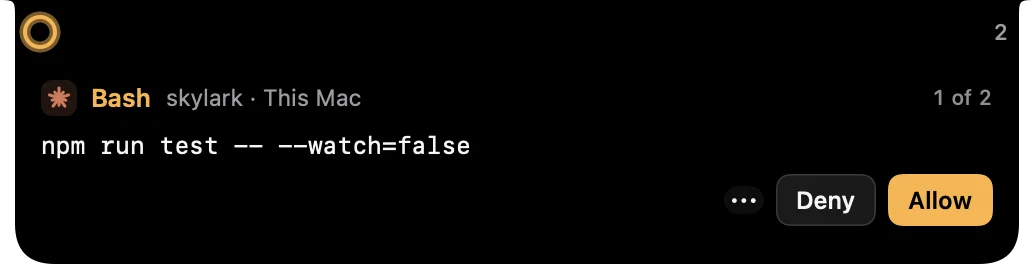
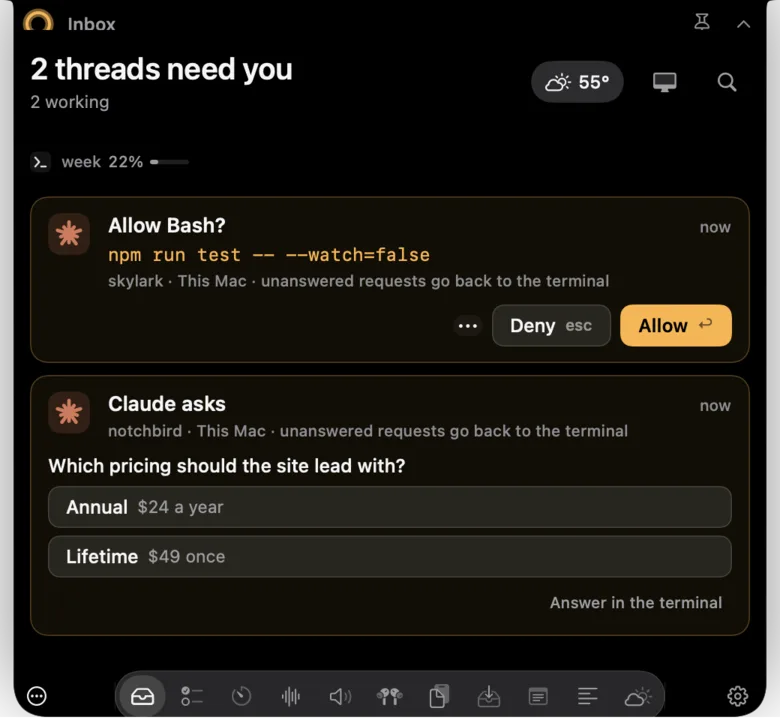
In Notchbird, approvals are opt-in per machine in Settings → Machines. Before it changes anything, Notchbird shows you exactly what it will add to Claude Code's settings. After that, permission prompts and Claude's questions appear in the notch with Allow and Deny, and Return or Esc answer them. It works for sessions on this Mac and on the SSH machine you add.
- If Notchbird isn't running, or you don't answer in time, Claude Code falls back to its normal prompt in the terminal.
- Notchbird never approves anything on its own.
- Codex approvals aren't supported yet. Notchbird alerts you when Codex is waiting and opens that exact thread.
Which approach fits
| Approach | Fewer prompts | Answer away from the terminal | Effort |
|---|---|---|---|
Allow rules and /permissions | Yes | No | Minutes |
| Permission modes | Yes, with less oversight | No | One keypress |
Your own PermissionRequest hook | No | Yes | A script that waits safely |
| A notch or menu bar app | No | Yes | Install and opt in |
Most people end up with both: allow rules for the routine, and a quick way to answer the rest. To get alerted when Claude finishes as well as when it asks, see Claude Code notifications.
Sources
- Claude Code docs: configure permissions
- Claude Code docs: permission modes
- Claude Code docs: commands (/permissions)
- Claude Code docs: hooks reference (PermissionRequest, PreToolUse)
- Claude Code docs: tools reference (AskUserQuestion)
Common questions
How do I stop Claude Code asking permission for the same command?
Add an allow rule such as Bash(npm run test *) to the permissions object in ~/.claude/settings.json, use the /permissions dialog, or choose don't ask again at the prompt, which saves the rule to .claude/settings.local.json.
Can a hook approve Claude Code permission prompts?
Yes. A PermissionRequest hook can print a decision with behavior allow or deny. Deny and ask rules still apply, and a hook that times out has its output discarded.
Can I approve Claude Code prompts from my MacBook notch?
Yes, with a notch app. Notchbird shows Claude Code permission prompts and questions with Allow and Deny, falls back to the terminal if you don't answer, and never approves on its own.
Notchbird puts Claude Code's permission prompts in your notch with Allow and Deny, and falls back to the terminal if you're away.
Try Notchbird free