Guide
How to keep notifications and apps out of a screen share on a Mac
Two steps cover most of it. First, in System Settings → Notifications, set Show notifications when mirroring or sharing the display to off. Second, share a single window or app instead of your entire screen, in Zoom, Google Meet or the macOS sharing menu. Apps that draw on top of everything, such as notch apps, need their own setting.
1. Turn off notifications while sharing
- Choose Apple menu → System Settings → Notifications.
- Find Show notifications: when mirroring or sharing the display.
- Choose Notifications Off.
macOS then holds banners and alerts while you mirror or share your display, so a private message can't slide across the corner of your shared screen. This covers apps that use the system's notifications. It doesn't cover apps that draw their own windows.
2. Share one window, not the whole screen
Anything you don't share can't leak. Every major meeting app lets you pick a window:
| App | How to share one window |
|---|---|
| Zoom | Click Share Screen on the meeting toolbar and choose the app window instead of the desktop. Zoom's own controls and meeting notifications aren't shared by default. |
| Google Meet | Click Present now and choose A window or A tab instead of Your entire screen. On macOS Sequoia and later, allow screen recording for your browser when asked. |
| macOS sharing menu | In apps that use it, click the video icon in the menu bar, then the Screen Share button, and choose Share This Window or Share All Application Windows instead of Share Entire Screen. |
The trade-off is that switching apps mid-demo shows a blank or frozen frame to everyone else. If you'll be jumping between a browser, a terminal and an editor, sharing the whole screen is often more practical, so the rest of this page matters more.
3. Check apps that sit on top of everything
Menu bar extras, notch apps, floating timers and chat heads draw their own windows above your work. A full-screen share captures them unless the app opts out. Some apps can exclude their own windows from capture, so they don't appear in screenshots, recordings or shares. Look in their settings for something like screenshot privacy or hide from screen capture.
A quick test: start a meeting on your own with Zoom or Meet, share your entire screen, and open the shared view on your phone. Whatever you see there, the room sees.
How Notchbird handles it
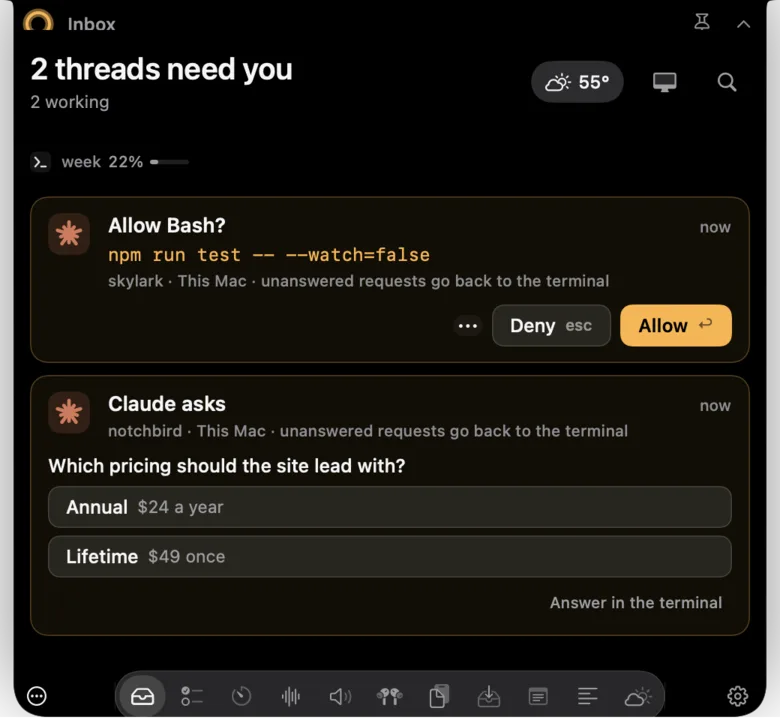
Notchbird lives in the notch and shows things you probably don't want on a projector: Claude Code and Codex session titles, file names in permission prompts, your plan for the day, clipboard history. So it is left out of screenshots, screen recordings and screen sharing by default, and you can turn that off in Settings → Privacy. You still see everything on your own display while the share runs.
That's why the Prompter works on calls: the script scrolls under your camera and isn't in the share. The morning planning interview also stays quiet while you share your screen or are on a call.
A one-minute checklist before you present
- Notifications off while sharing, in System Settings → Notifications.
- Share a window if the demo lives in one app.
- Close or hide anything personal in the menu bar, or confirm it is excluded from capture.
- Close unrelated browser tabs, because tab titles show in the tab bar.
- Do a dry run on your phone if the audience matters.
More: Claude Code notifications and the rest of the guides.
Sources
- Apple: Notifications settings on Mac
- Apple: use video conferencing features on your Mac
- Zoom: sharing your screen
- Google Meet: present during a video meeting
Common questions
How do I stop notifications showing when I share my screen on a Mac?
Open System Settings, then Notifications, and set Show notifications when mirroring or sharing the display to Notifications Off.
Can I hide one app from a screen share on a Mac?
macOS has no switch to exclude a chosen app. Share a single window or app instead, or use apps that exclude their own windows from capture, as Notchbird does by default.
Does Notchbird show up when I share my screen?
No. Notchbird is excluded from screenshots, recordings and screen sharing by default, so agent alerts, the Prompter script and your day plan stay on your own display.
Notchbird stays out of every screen share by default, so your agent alerts and notes never reach the projector.
Try Notchbird free