Guide
How to check your Codex usage limits
In the Codex CLI, type /status during a session to see your remaining limits. On the web, open the Codex usage dashboard at chatgpt.com/codex/settings/usage. Limits are counted per five-hour period, depending on your ChatGPT plan and the model, and weekly limits may also apply.
How Codex limits work
When you sign in to Codex with ChatGPT, your plan sets how many local messages you get in each five-hour period, and the figure varies by model. OpenAI's pricing page says weekly limits may also apply, and that Pro plans currently have no five-hour limit. If you reach a limit mid-task, Codex can keep working on that turn, subject to fair use. After that, Plus and Pro users can buy credits, and Business, Edu and Enterprise workspaces use workspace credits.
1. /status in the CLI
Inside a Codex session, run:
/status
OpenAI's docs point to this command for checking your remaining limits during an active CLI session. It's the quickest check before you start a long task.
2. The usage dashboard
Signed in to ChatGPT, open chatgpt.com/codex/settings/usage. It's the place to check when you aren't in a session, and on a phone.
3. Keep it in view
Both of those are checks you have to remember to do. A meter shows the number without asking. Notchbird reads Codex limits from the files Codex already keeps on your Mac and shows them in the header of its Inbox next to your Claude limits. Past 80% a thin meter appears in the notch, and at 90% you get one notice.
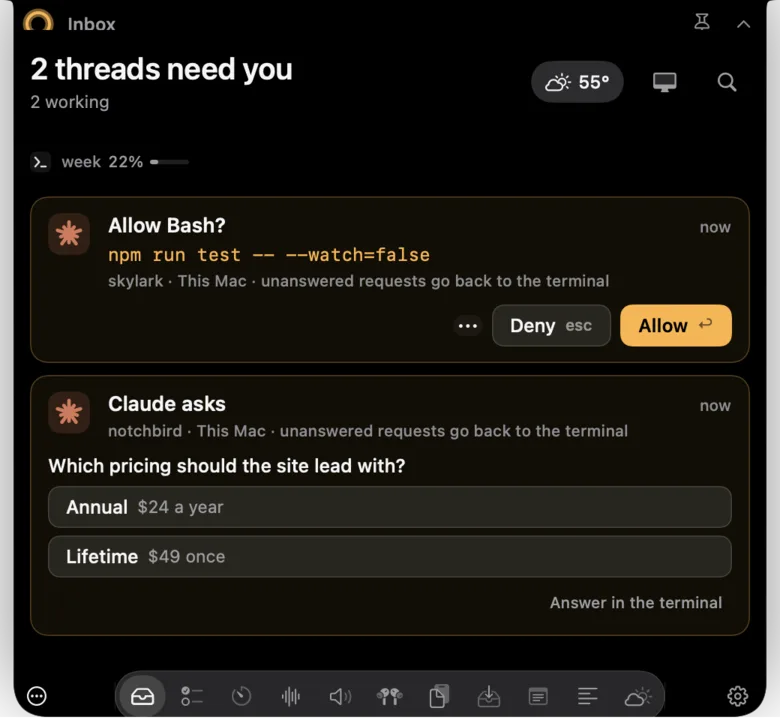
Notchbird also alerts you when a Codex chat finishes or waits for your approval, with one click to open that exact thread. Approving Codex requests from the notch isn't supported yet; you answer them in Codex. More on that in Codex notifications on Mac.
Making a limit last longer
- Pick the model for the job. Allowances differ by model, so a lighter model for routine edits leaves more for hard problems.
- Batch small asks into one clear instruction instead of several back-and-forth turns.
- Check before a long run. A refactor that stops at 95% of the window wastes the work in progress.
Codex limits and Claude Code limits side by side
Many people run both and switch when one runs low. The two work in a similar way, with different places to look.
| Codex | Claude Code | |
|---|---|---|
| Short window | Five hours, by plan and model; none on Pro at present | Five-hour session limit |
| Long window | Weekly limits may apply | Weekly limit across all models |
| Check in the terminal | /status | /usage |
| Check on the web | chatgpt.com/codex/settings/usage | Settings → Usage on claude.ai |
| At the limit | Finishes the turn, then credits on Plus and Pro | "You've hit your session limit" or "weekly limit" |
A common pattern is to plan and review with one agent and run long edits with the other, so a limit on one doesn't stop the day. A meter that shows both makes that switch obvious.
Which to use
| Method | Where | Always visible |
|---|---|---|
/status | In a Codex CLI session | No, on demand |
| Usage dashboard | chatgpt.com in any browser | No |
| Notchbird | The notch, with Claude alongside | Yes, above 80% |
Using Claude Code too? See how to check Claude Code's 5-hour and weekly limits.
Sources
- OpenAI Codex docs: pricing and usage limits
- Codex usage dashboard
- OpenAI Codex docs: approvals and security
- Claude Code docs: costs and usage limits
Common questions
How do I see my Codex usage limit?
Run /status during a Codex CLI session, or open the Codex usage dashboard at chatgpt.com/codex/settings/usage.
Does Codex have a weekly limit?
OpenAI's pricing page says limits are counted per five-hour period by plan and model, and that weekly limits may also apply. Pro plans currently have no five-hour limit.
What happens when I hit the Codex usage limit?
Codex can finish the turn it is working on, subject to fair use. After that, Plus and Pro users can buy credits, and Business, Edu and Enterprise workspaces use workspace credits.
Notchbird shows your Codex and Claude limits in the notch, and alerts you when a chat finishes.
Try Notchbird free